|
|
| . |
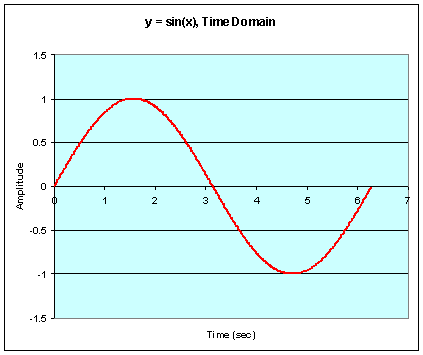
Understanding / Reading Bode PlotsIntroductionThe Bode Tool's main function is to make it easy to get frequency response data for your system. For frequency response data to be useful, you need to know what it means. This page is an introduction to understanding frequency response plots as used in the Bode Tool and other sources. We will try to keep math to a minimum while still demonstrating the concepts involved. Keep in mind, this page is intended as a guide to understanding how to read frequency response plots of your system, not a definitive dissertation on frequency analysis or a control loop tuning guide. BackgroundThis section will lay some of the foundation for how non - sine wave based signals can be read in terms of their sine components. If you are comfortable with this concept, or want to skip it, go straight to the section Frequency Reponse. Making a Square Wave From Sine WavesA linear function (i.e. a square or triangle wave, or the movement of your servo system) can be represented by a series of sine waves. This is a critical point, so let's take a look at a couple of examples. The first example is as easy as it gets. A single sine wave can be represented by y = sin(x). This is more a definition than a discovery.
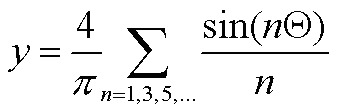
OK, that was easy. Let's see what we can do with a square wave. A square wave that goes from 1 to -1 at the same frequency as the sine wave above can be represented by the series of sine waves represented by
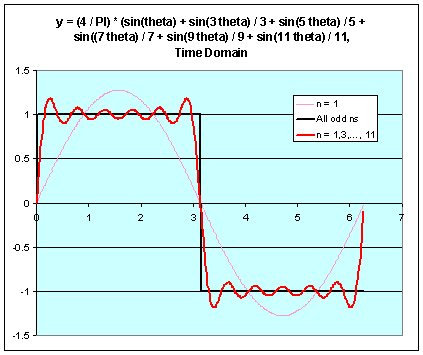
Now don't worry about being able to come up with this equation. Let's just focus on the idea that you can make a square wave with just a bunch of sine waves. Another important point is that we need to add an infinite number (all the odd values of n) to make a perfect square wave out of a bunch of sine waves. We'll get to the ramification of this later. Right now, let's take a look at a square wave made using the above equation using n = 1, n = 1 to 11, and all the odd n's.
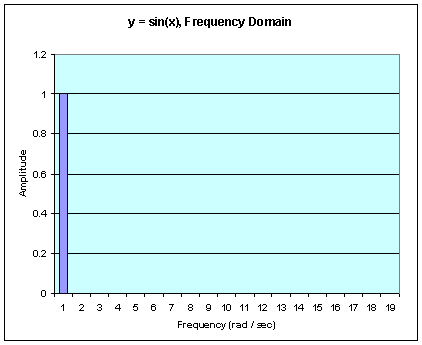
A couple of important notes here: With an infinite number of n's, the square wave made of sine waves is perfect. With only one sine wave (n = 1), the square wave turns into a sine wave. With n = 1 to 11, the square wave is close to, but not exactly a square wave. The more n's you use, the better your square wave. This means that you get ripples in your square wave if you can't reproduce high frequencies (think about how high a frequency your machine can reproduce). Making Square Waves from Sine Waves, Part 2The plots above were shown in the time domain. That means that we plot amplitude vs. time. A frequency response plot, like the Bode Tool, shows results in the frequency domain. This means that we plot amplitude vs. frequency. Think of it as plotting how loud a piano is by plotting amplitude per key. Each key is at a different frequency and you can represent the music by what key is pressed, and how hard (in a crude sense). Let's take a look at a sine wave in the time domain and the frequency domain:
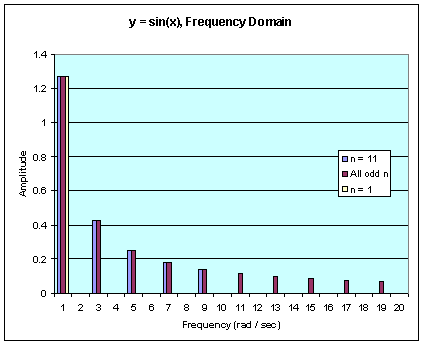
OK, this isn't too bad. The frequency domain chart, just shows that there is a sine wave at a single frequency of 1 radian / sec and its amplitude is 1. Let's take a look at the square wave for the cases where we have the sine components n = 1, n = 1 to 11, and all odd n's.
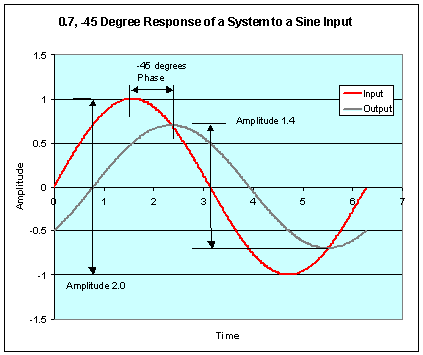
You can see all the sine amplitudes and frequencies that make up a square wave (up to n = 19). The important part is not to be able to figure out the frequency content of a square wave, but to understand that the two above plots are different ways of reading the same data and how to read the plots. Frequency ResponseWith some background, let's move to a related, but not identical idea of frequency response. Frequency Response definitionLet's take the idea of making a signal (like the square wave above) out of sine waves and extend it to tell you what a system will output with a given input. If you input a sine wave into a system and watch the output, you will can measure the relationship between the input and output. Let's take a look at how this is done.
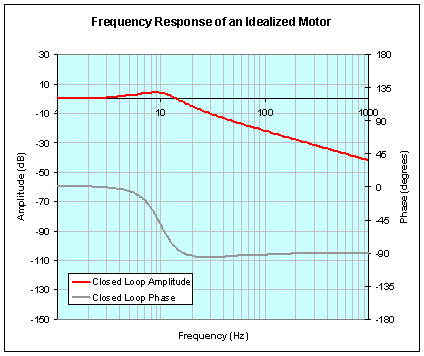
We command the system to follow a sine wave. We then measure the input and output response in the time domain, at the same time. First you measure the ratio of the output amplitude to input amplitude. This is usually expressed in decibels (dB). In this example, we have 20*log(1.4 / 2.0) = -3.1 dB. This is referred to as the amplitude response. Second, you need to know how much the output lagged behind the input in time. This is measured in degrees, where 360 degrees is the length of one cycle. In the above example, the output lags 45 degrees behind the input. Remember that 45 degrees at one frequency is a different amount of time than it is at 2 times that frequency. The time that the output lags behind the input is referred to as the phase response. When the Bode Tool uses the sine sweep mode, it is just completing the amplitude and phase response measurement over and over at different frequencies so we can plot the frequency response (amplitude and phase response together) across a frequency range. The Bode PlotOnce we have collected the phase and amplitude response for many frequencies, one of the most intuitive ways to display it is to plot the amplitude response vs. frequency and the phase response vs. frequency and put it on one plot. This plot is called the Bode plot after H.W. Bode, a controls pioneer that popularized the chart.
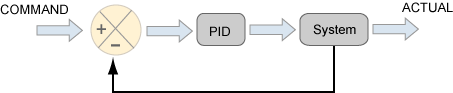
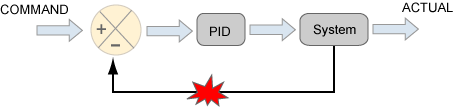
The above plot shows the frequency response of an idealized motor (data based of a simplified model of an actual motor). First, look at the frequency response at frequencies less than 5 Hz. The response is close to 0 dB (10^(0 dB / 20) = 1.0). This means that the motor's output will look like the motor's input. If you input a 2 Hz position command, this motor with this control system can follow it with close to identical amplitude. Look at the phase, in the same frequency range. The phase is near 0 degrees, which means that the output will not lag behind the input. 0 dB at 0 degrees implies perfect agreement between the output and input to the system. This is what we are shooting for. Second, let's take a look at the amplitude and phase response around 10 Hz. The amplitude response is about +4 dB, -60 degrees. This means that the output will be 1.6 times as large as the output and 60 degrees behind the input at 10 Hz. This isn't what you want. You want your system to move as far as you told it to, no more, no less. Lastly, let's look at the frequency response at 200 Hz. The amplitude response is -40 dB, -90 degrees. This means that the output amplitude is 0.01 times the input amplitude (10^(-40/20) = 0.01 and the output lags 90 degrees behind the input. You don't want this either. If you command the system to move one unit, you want it to move one unit, not 0.01 units. These are the challenges of controls systems. Now that we have the basics of how to read a Bode Plot and a simple idea of what the plot is telling us, let's look at some examples to get a more in depth understanding of what the Bode Plot is telling us. Closed Loop, Open Loop, Control Loop, Plant ResponsesThe above example shows the closed loop response of a system. Let's take a moment to talk about what closed loop, open loop, control loop, and plant mean. The following figure shows a block diagram of a PID control loop. It could just as easily be a PIV or frequency shaping control loop by replacing PID with another algorithm in the same place.
We already touched on closed loop response in the previous section. The closed loop response is the amount of output (actual position) per input (commanded position) in both amplitude and phase. What makes it the closed loop response as opposed to another type of response is that we took the measurement while the system was under closed loop servo control. If we disconnected the feedback of the system, but otherwise left the system alone, we would have a very different system. If we measured that system as described above, we would get the open loop response.
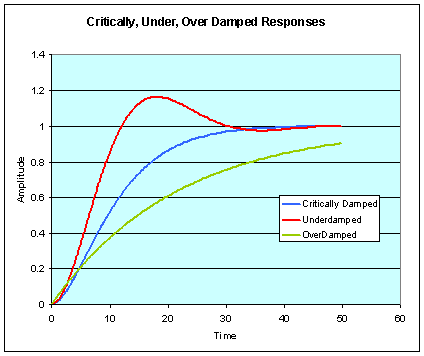
Most of the time, running the system open loop like is shown in the diagram above results in wild motion that is unacceptable. Considering this, we often determine the open loop response of a system from the closed loop response. Some mathmatical gyrations are required for this, but luckily, the Bode Tool can do this for us. The control loop response is simply the response of the controller (PID section in the above diagrams). We measure the control loop response by measuring how much control loop output we get for an amount of control loop input in amplitude and phase. It doesn't really matter if the loop is closed or open. It just matters that we have a measureable amount of control loop input and output to observe. For that matter, the control loop is easy to simulate accurately, so we rarely measure the control loop response directly -- we just rely on Bode Tool simulations of the control loop. The plant response is simply the response of the system (plant). The term plant refers to the system under control and can consist of mechanical / electrical / sensor / other aspects. It does not refer to the control loop or controller. Think of the plant as your servo system before you hook up the controller. You may have motors, encoders, mechanical systems .... The term "plant" comes from classical control theory. The plant response is measured by measuring the amount of plant output per plant input in amplitude and phase. Keep in mind that the closed loop, open loop, control loop, and plant responses are all separate measurements, but are not completely unrelated, as they are all part of the same servo system. Underdamped / Critically damped / Overdamped SystemsMany system designers will have very firm opinions on critically damped vs. underdamped systems. Sidestepping the merits of each, let's look at what constitutes an under / over / critically damped system. First, let's look at a plot of an under, over, and critically damped system.
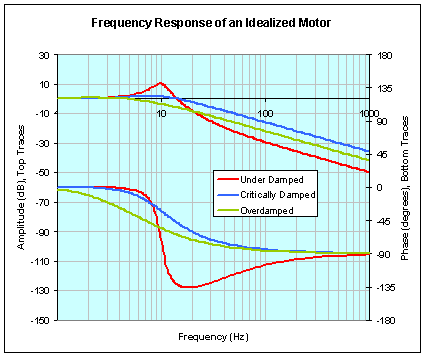
This plot shows three systems that start at position 0.0 and are commanded to go to position 1.0. The underdamped system overshoots the target and comes back to the target. The critically damped system approached 1.0 as fast as it can without overshooting. The overdamped system approaches more slowly than is required to not overshoot. Let's compare this to similar data in the frequency domain.
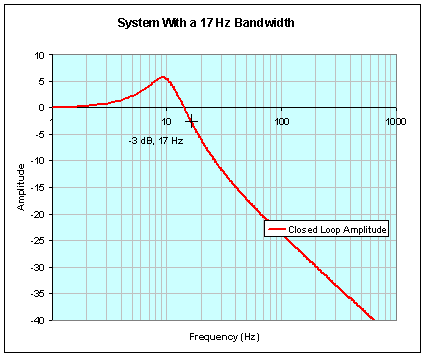
In some ways, the frequency and time domain plots have the same defining characteristic that shows whether the system is under, over, or critically damped. The under damped motor shows a peaking in the frequency response. It doesn't oscillate about a target in the frequency response, though. The critically damped system has 0 dB response until some frequency when it falls cleanly away from 0 dB. The overdamped system falls away from 0 dB earlier and more gradually. Understanding how to identify an under, over, or critically damped system is important because it is an important measure of system stability used in control loop tuning. BandwidthBandwidth is a term that is used frequently to describe how "fast". or how "good" a system is. The bandwidth of a system is merely the frequency at which the closed loop amplitude response falls to -3 dB. In the example below, the bandwidth of the system is 17 Hz.
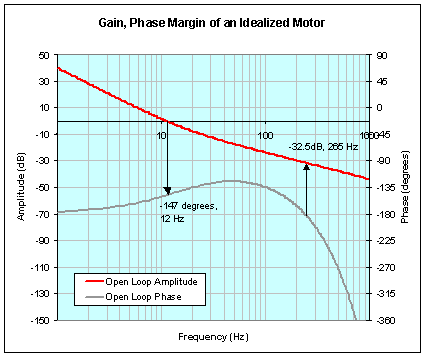
Bandwidth is not a very precise measure of system performance. Use it for rough ideas of system performance, but don't make much of someone telling you about 3% difference in bandwidth across different machines or the like. Gain and Phase MarginsGain and phase margins are common terms to describe how stable a system is. Gain and phase margins are used more because they are simple than because they are ideal measurements of stability. Gain and phase margins are measured from the open loop frequency response of the system. This is a critical thing to note. Gain and phase margins can not be acquired directly from a closed loop frequency response. To measure the gain margin of a system, find the point that the open loop phase response crosses -180 degrees. At the same frequency as this point, find the open loop amplitude response. The distance below 0 dB that the open loop amplitude response reads at this frequency is the gain margin. In the example below the gain margin is 32.5 dB. To measure the phase margin of a system, find the point that the open loop amplitude crosses 0 dB. At the same frequency as this point, find the open loop phase response. The distance above -180 degrees that the open loop phase response reads at this frequency is the phase margin. In the example below, the phase margin is 33 degrees (180 degrees - 147 degrees = 33 degrees).
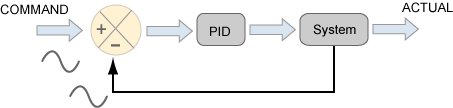
Gain and phase margins are supplied in pairs. The example above would be described at having gain and phase margins of "32.5 dB, 33 degrees." InstabilityServo systems have the problem of instability. If the control system for a servo is applied incorrectly, the system will be unstable. This can mean anything from the system making objectionable noises because of oscillations to a complete servo runaway where the servo will try as hard as it can to move away from the target position. There are many different ways to measure servo instabilities, but let us consider just one case for now: 0dB, -180 degrees. First we will talk about what makes 0dB, -180 degrees unstable, then we will talk about how to tell if your system is close to this condition. If you want, skip to the section, How Do I Tell If My System Is Close To 0 dB, -180 Degrees? Why Is 0dB, -180 Degrees So Bad?This question requires looking at how a feedback system (servos are feedback systems) works. Looking at the two cases where 1) the open loop response is 0 dB, 0 degrees and 2) the open loop response is 0 dB, -180 degrees will illustrate why 0 dB, -180 degrees is so bad. First, let's look at 0 dB, 0 degrees open loop response. This means that when you send a command, the motor does exactly that. It makes a move with the same amplitude and in phase. Since this is open loop response, it means that the system does this with out considering the feedback loop. Looking at the following figure, consider that the sine wave on the input will show up back from the system because it does exactly what we tell it. This means that the error block (orange circle with a cross in it) will subtract the actual system response from the command and get -- zero! This means that the servo system doesn't have to make any corrections. The system is stable and accurate.
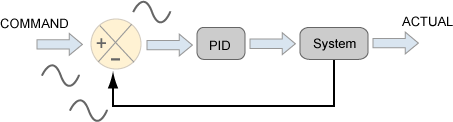
Now let's look at the same system, but with a 0 dB, -180 degree open loop response, instead of a 0 dB, 0 degree open loop response. We put in a sine wave and because the system is -180 degrees out of phase, we get the same sine wave, but inverted! When the error block subtracts the two, we get an error that is twice the size of the input! This is no good. This causes the system to create an actual response from the system that is bigger, causing a bigger error, and this will spiral out of control until the system aborts or breaks. This is an unstable system.
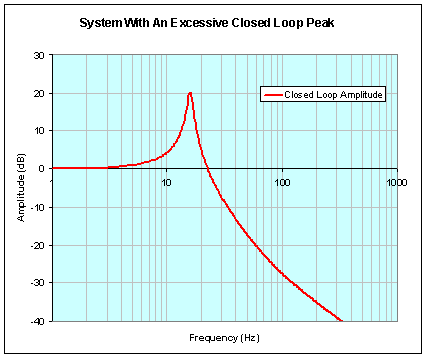
How Do I Tell If My System Is Close To 0 dB, -180 Degrees?There are two signs: 1) large amplitudes in the closed loop amplitude response and 2) the open loop frequency response approaches 0 dB, -180 degrees. It is easy to see a large closed loop amplitude response. Large would be any value of > 6 dB or so. An example is shown below.
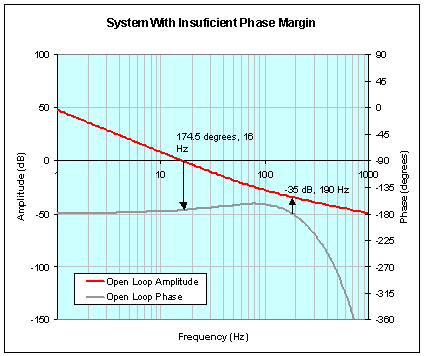
There is a huge 20 dB peak. In practice, any closed loop amplitude peak above 6 dB or so should have you seriously considering the stability of your system. The closed loop amplitude peak is really a symptom of the problem (a serious symptom!). The real problem is that the open loop response is aproaching 0 dB, -180 degrees. Let's take a look at the same system above, but let's look at the open loop response.
This is the same system and it has 5.5 degrees of phase margin (180-174.5 = 5.5) and 35 dB of gain margin. Most controls engineers would shoot for 30 degrees of phase margin as a minimum. We can worry later about exactly what is acceptable or not when we get into tuning. For now, it is enough to know what measurements on the Bode Plot will let us decide whether a system is stable or not.
|
|||||||||||
| | | Copyright © 2001-2009 Motion Engineering |