|
|
| . |
Running a Sine Sweep To make a sine sweep measurement of the system, select "Sine Sweep" as the type of measurement from the Measurement menu bar (Measurement->Fourier->Sine Sweep).
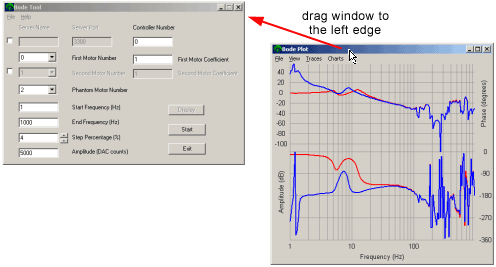
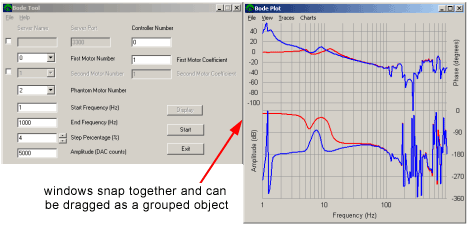
Before performing a sine sweep test, several parameters must be set: This is the motor number of the primary motor to test. If two motors are being tested, the choice of which motor is the First Motor Number is arbitrary. However, this number must correspond to an enabled motor object (object enabled in firmware, not enabled at the amplifier). This number scales the sine sweep signal for testing. When testing a single motor, this number should be left at 1.0. When testing two cross-coupled motors with different effective torque constants, this number can be useful. The allowed range on this number is +/- 2.0. This number is similar to the first motor number. This number is only used if the check box next to the Second Motor Number edit box is checked. If that box is unchecked, no excitation will be sent to a second motor, nor will any data be calculated for a second motor. Two motors are often excited simultaneously if two motors are cross-coupled. The second motor coefficient is similar to the first motor coefficient. If the First and Second Motor Coefficients are both 1.0, the same excitation signal will be sent to both axes. If the signals are opposite in sign, the excitation will be effectively out-of-phase. If the cross-coupled axes do not have equivalent, effective motor torque constants, scaling the Second Motor Coefficient value to a value other than 1.0, while keeping the First Motor Coefficient = 1.0 will provide the intended flexibility when testing. This adjustment can be helpful when testing scara and other complex, cross-coupled axes. It will help differentiate between the cross coupled behavior associated with a derived/complex coupled axis showing motional interation and axes from a single non cross-coupled axis that showing no such interaction. The sine sweep can measure Closed Loop, Open Loop, Controller, Plant, User, and Custom measurement types. The measurement type drop down box lets you select which measurements will be made in sine sweep mode:
The examples below were taken from using a Trust TA 9000. Closed Loop
The Closed Loop measurement does not work with MechaWare. Only the Custom and User Buffer measurements work with MechaWare. Controller
The Controller measurement does not work with MechaWare. Only the Custom and User Buffer measurements work with MechaWare. Plant Here is the same test performed when Kp, Ki, and Kd parameters all equal zero. The plant data is the same. The filter data is shown as 0dB, 0 degrees when there are no filter parameters.
This Plant measurement does not work with MechaWare. Only the Custom and User Buffer measurements work with MechaWare. Open Loop The following plot shows a blue trace (measured open loop response), red trace (closed loop response simulated from a measured open loop response), and a green trace (simulated filter response).
This Open Loop measurement does not work with MechaWare. Only the Custom and User Buffer measurements work with MechaWare. Custom To specify the controller memory address, VM3 is a handy tool to visually browse the controller memory. An example is shown below where the position error is desired and is shown to be at address 0x28d45.
Specifying addresses in the Bode Tool First, select the Custom test type. To specify the address, simply enter the hex address, led by "0x" in the In and Out edit boxes in the Bode Tool. The following example shows the address 0x4069a7 set for the input address and 0x4069a8 as the output address.
Specifying addresses in bode.ini To specify the address, the bode.ini file must be modified. The bode.ini file tells the Bode Tool it's settings on start up and saves current settings on closing. The following settings will be needed in bode.ini. A dual channel DFT, like used in the Bode Tool is made up of and input and output. For instance, in a plant measurement, the input is the commanded torque, and the output is the actual position. customPointIn - This is the input address for the dual channel dft. This value is a hex address. A sample configuration is shown below (from bode.ini)for reference: customPointIn 0x28d4c The custom mode will return the frequency response of the input vs output as the closed loop trace. The open loop trace will be calculated, but may or may not be appropriate depending on the points you choose to measure. User Buffer The User Buffer test type was created to simplify MechaWare sine sweep testing. The values recorded in the User Buffer mode must be floats. To select the address, simply enter the user buffer index in base 10. The following example show User Buffer 1 as the input and User Buffer 0 as the ouput.
This is the beginning of the sine sweep range. Frequencies that are below 1 Hz suffer from sine signal generation artifacts, which typically result in rough motion during testing. However, the data collected should only be slightly affected. Most systems controlled by an XMP will have an ideal response below 1 Hz. This is the ending frequency of the sine sweep signal. The practical upper limit is the Nyquist frequency (1 / 2 * servo sample rate, default sample rate = 2000 Hz). While any data collected above the Nyquist frequency is not recommended, you can still test above this frequency. However, an upper limit of 20,000 Hz is enforced. The sine sweep is not a smooth ramping of a sine test signal. Rather, it is a series of sine signals that are momentarily constant in frequency and are stepped in frequency between adjacent frequencies. The entire sine sweep signal is continuous in time (i.e. no discontinuities in time). The size of the adjacent frequency steps are set by Step Percentage. Using a small Step Percentage (< 3%) will result in more frequency response collected, finer resolution of that data, and a longer test. A high Step Percentage (> 3%) will result in less frequency response data collected, coarser resolution of that data, and a shorter test. If the step percentage is too high, resonance data can be distorted, or miss a resonance altogether. A step percentage a 4% seems to be a good starting point for most systems. For example, if you had a Start Frequency of 1 Hz and a Step Percentage of 4%, you would get the following sine frequencies: 1.0 1.04 1.0816 1.124864 etc… The sine test signal is scaled in DAC counts. The Amplitude is the peak amplitude of a sine sweep. Valid values are between 0 - 32767 (10 Volts output). Care should be taken to make sure that no clipping occurs. Values of 15000 or less are typically clipping free, but systems with a large resonances can clip even with lower values. In order for a sine sweep to be completed on the XMP, an axis that is not being tested must be used to help generate the sinusoidal disturbance. The program will generate a virtual (phantom) motion supervisor, axis, and motor of the "Phantom Motor Number" during testing and will remove the same objects once the testing is finished. This "phantom" axis can be one that is used by your system, but during the sine sweep its amplifier should be disabled. The program attempts to eliminate any disturbance signals that may affect the phantom axis (if one is hooked up). However, you should disable any system hooked up to the "phantom" axis. WARNING: A sine sweep can take a long time and can easily introduce too much energy into a system if configured incorrectly. This can result in resonances being excited for a long period of time and possible overheating of motors. The Bode Tool does not have any way to recognize that a system has gone into an uncontrollable oscillation. The user is responsible for choosing parameters that will not result in dangerous or damaging motion if a physical motor is connected. If dangerous motion does occur, click on the large abort button that pops up upon the start of the test. The user can also press the space bar or the enter button to do the same when the abort button has focus (active window).
An abort causes the axis being tested to perform an abort action, perform a stop action on the phantom axis, and return the settings to their original state (remove sine sweep specific settings). If the large abort button does not have focus (grey title bar), the space bar and enter button will not stop the test. The abort will lose focus when the mouse is clicked outside the large abort button window. Loss of focus can be seen by a change in the appearance of the abort button and a change in the abort button window title bar (turns to grey). The Current Frequency is also shown in real time, along with a vertical bar that shows the current progress of the sine sweep (in time). The Bode Tool will attempt to clear errors on the phantom axis. If for some reason, the error will not clear, the program will pop up an error window asking you to fix the problem. An error state on the axis being tested will generate this pop up window:
If the axis being tested has an error, the program will not start testing until the error is cleared. Use Motion Console or a similar application to clear the error and start another test.
|
||||||||||||||||||||
| | | Copyright © 2001-2008 Motion Engineering |