|
|
| . |
How to Use the MPI App Wizard
|
||||||||
|
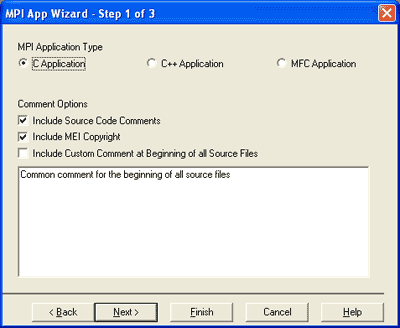
The first step is to select the type of application
code you wish to generate: C, C++, MFC.
You can also add a comment that will appear at the beginning of the sample
application.
C Application
App Wizard will create a single source file C application.
C++ Application
App Wizard will create a multiple source file C++ project that will include
using exceptions for MEI errors.
MFC Application
App Wizard will create an MFC Dialog project that will include using exceptionsfor
MEI errors.
Include Source Code Comments
If checked, the App Wizard will include source code comments explaining
the common actions.
NOTE: If unchecked, the App Wizard will still include comments
that are viewed as important. This will not affect "standard" MEI files,
such as MeiException.cpp and MeiException.h for C++ and MFC projects.
Include MEI Copyright
If checked, all sources will include the "standard" MEI copyright with
the current year being the ending year of the copyright.
NOTE: Unchecking this option will
not affect "standard" MEI files, such as MeiException.cpp and MeiException.h
for C++ and MFC projects.
Include Custom Comment at Beginning of all Source
Files
If checked, all files will include custom comments at the beginning of
the file, but following the MEI copyright and any safety warnings. Use
the associated edit box for entering the comment to be used.
NOTE: Checking this option will not
affect "standard" MEI files, such as MeiException.cpp and MeiException.h
for C++ and MFC projects.
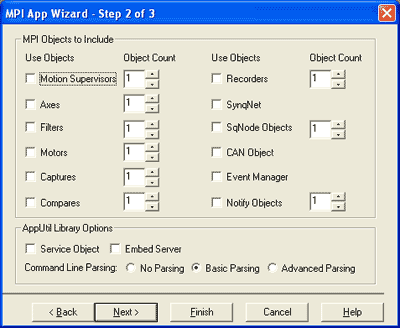
In the second step, you will specify the basic features of your system such as the number of Motion Supervisors, Axes, Filters, Motors, etc. You can also set the AppUtil Library Options such as whether or not to include a Service Object and what kind of Command Line Parsing you wish to support.
This section will specify what objects will be included
in the sample application and how many of each object to include. For
example, if you want to use a Motion Supervisor object, you will need
to check the checkbox labeled "Motion Supervisors". Then you may specify
how many Motion Supervisors to use by changing the "Object Count" box
next to the "Motion Supervisors" checkbox.
The following options require use of MEI's "Application Utility" library found in <MEI>\XMP\AppUtil\. Using any one of these options will add the application utility library to project created by the App Wizard.
Service Object
This option will include a Service object in the new application. The
Service object is designed to automatically retrieve XMP events and distribute
them either whenever a XMP interrupt occurs.
Embed Server
This option will embed a motion control server into a C++ or MFC application.
Remote applications (running on other computers) such as Motion Console
and Motion Scope will be able to connect to a motion controller through
this application.
As an example, the server object will inherited and some of its methods overloaded that report MPI errors and the addition or removal of connections. Please refer to MeiServer.h for documentation about the Server class.
Command Line Parsing
The following options determine what kind of command line parsing is used
with the application. MFC projects ignore these options.
|
No Parsing Basic Parsing Advanced Parsing |
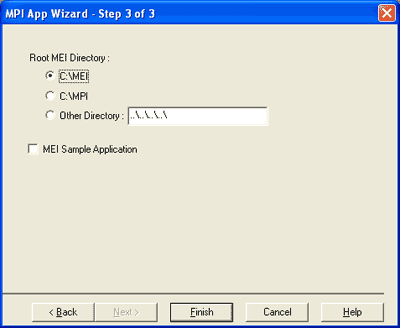
In the last step, you can change the location of where the file will be saved.
This section allows the user to specify the location of MEI files. This should agree with the installation directory chosen by the MPI InstallShield®.
For MEI Employees Only:
To create a project to be added to the sample application directory, use
the default directory specified in the "Other Directory" edit box. This
will allow the project files to correctly locate MEI libraries no matter
where the user installs the MPI.
This setting is intended only for applications written by MEI and used as sample applications. Checking this option will have the following affect:
|
When you click the Finish button, a dialog window will appear asking you to verify the parameters of the sample application.
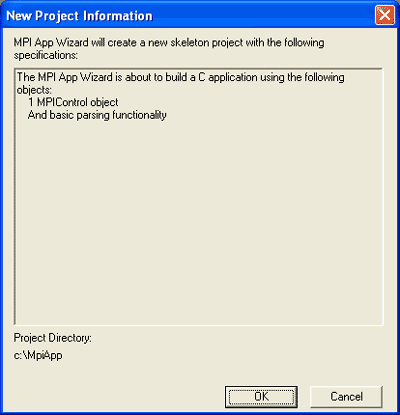
Click OK and your new MPI Sample Application will be built in Microsoft Visual Studio.
| | | Copyright © 2001-2021 Motion Engineering |